Inside Claude Code's Compaction System
How Claude Code manages long-running context — reverse engineered from a shipped bundle.
TL;DR: Compaction is not “summarize and hope.” Claude Code treats it as an operational mechanism: it sheds bulky tool outputs early, and when the context is close to full it summarizes into a structured “working state,” then rehydrates the few things that make you productive (recent files, todos, and a continuation instruction).
This post is based on reverse engineering a Claude Code bundle and focusing on the parts you can actually reimplement.
What You’ll Learn
- The three-layer design: microcompaction, auto-compaction, and manual compaction.
- The compaction contract: what the summary must contain to be reconstruction-grade.
- The rehydration sequence that preserves momentum (files, todos, continuation).
The Context Window
The context window is everything the model can see at once: system prompts, your messages, assistant messages, tool outputs, and any injected file contents.
What is Compaction?
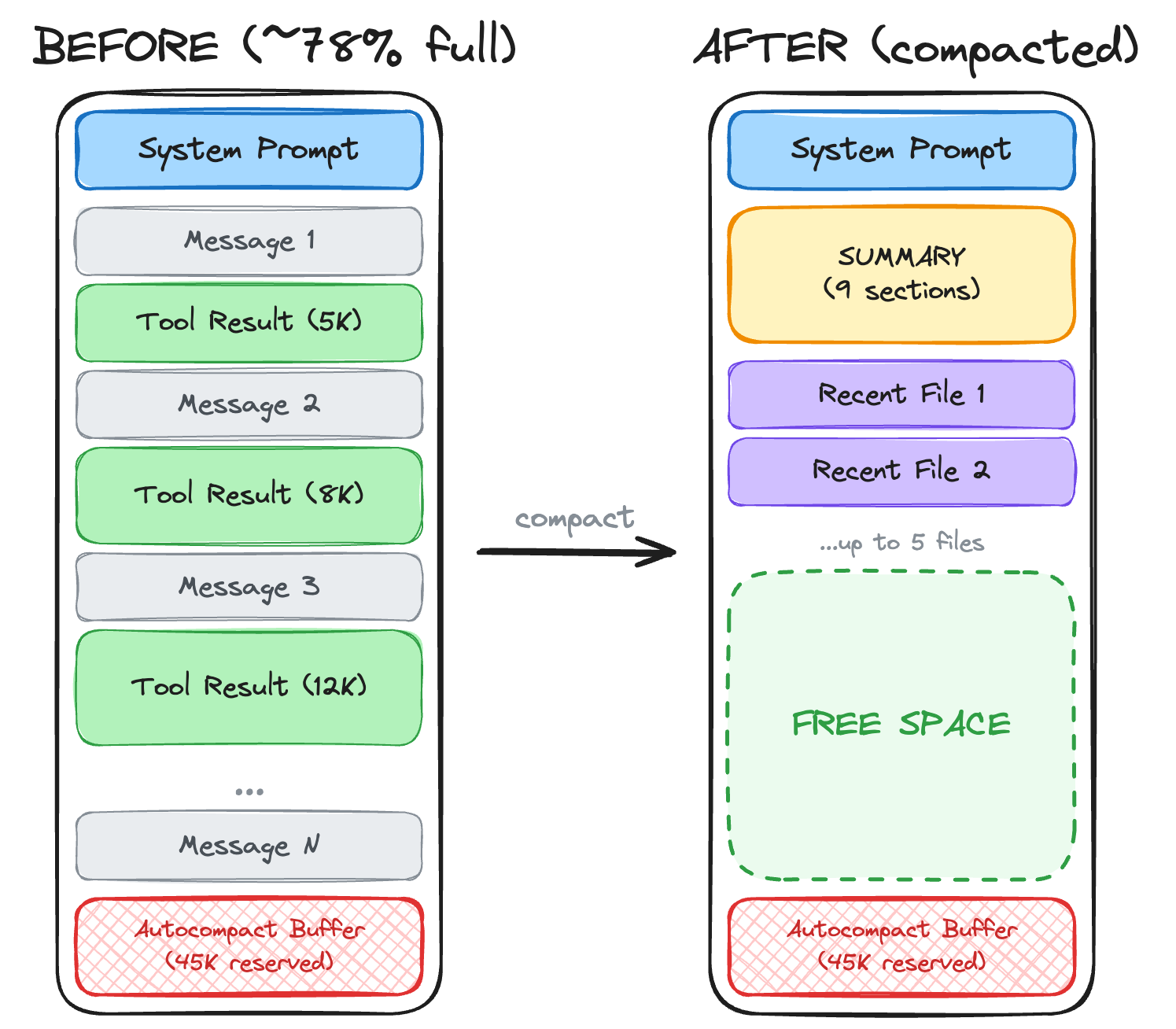
Compaction is summarization plus context restoration. After summarizing, Claude Code re-reads your recent files, restores your task list, and tells Claude to pick up where it left off.
| Approach | What it does |
|---|---|
| Truncation | Cut old messages. Simple but lossy. |
| Summarization | Condense conversation into summary. Preserves meaning but loses detail. |
| Compaction | Summarize + restore recent files + preserve todos + inject continuation instructions. |
How It Works
Claude Code manages context through three user-facing mechanisms:
- Microcompaction — offload bulky tool results early
- Auto-compaction — compact when the session is close to full
- Manual compaction — compact at a task boundary when you decide it’s time
1. Microcompaction
When tool outputs get large, Claude Code saves them to disk and keeps only a reference in the model context. Recent tool results stay “inline” so you can keep reasoning; older results become “stored on disk, retrievable by path.”
Applies to: Read, Bash, Grep, Glob, WebSearch, WebFetch, Edit, Write
The key idea is the split:
- Hot tail: a small, recent window of tool results that remain fully visible to the model.
- Cold storage: everything else, referenced by path (so humans can audit, and the agent can re-read if needed).
If you are implementing this yourself, treat microcompaction as a cache policy plus a persistence format:
- Cache policy: how many recent results to keep inline, and what size triggers offloading.
- Persistence format: a stable way to serialize the tool result (with enough metadata to interpret it later).
2. Auto-Compaction
Auto-compaction is driven by headroom accounting. Claude Code deliberately reserves space for:
- Output headroom: enough space for the model to finish a response.
- Compaction headroom: enough space to run the summarization workflow without failing mid-flight.
Once “free space” drops below the reserved headroom, compaction triggers.
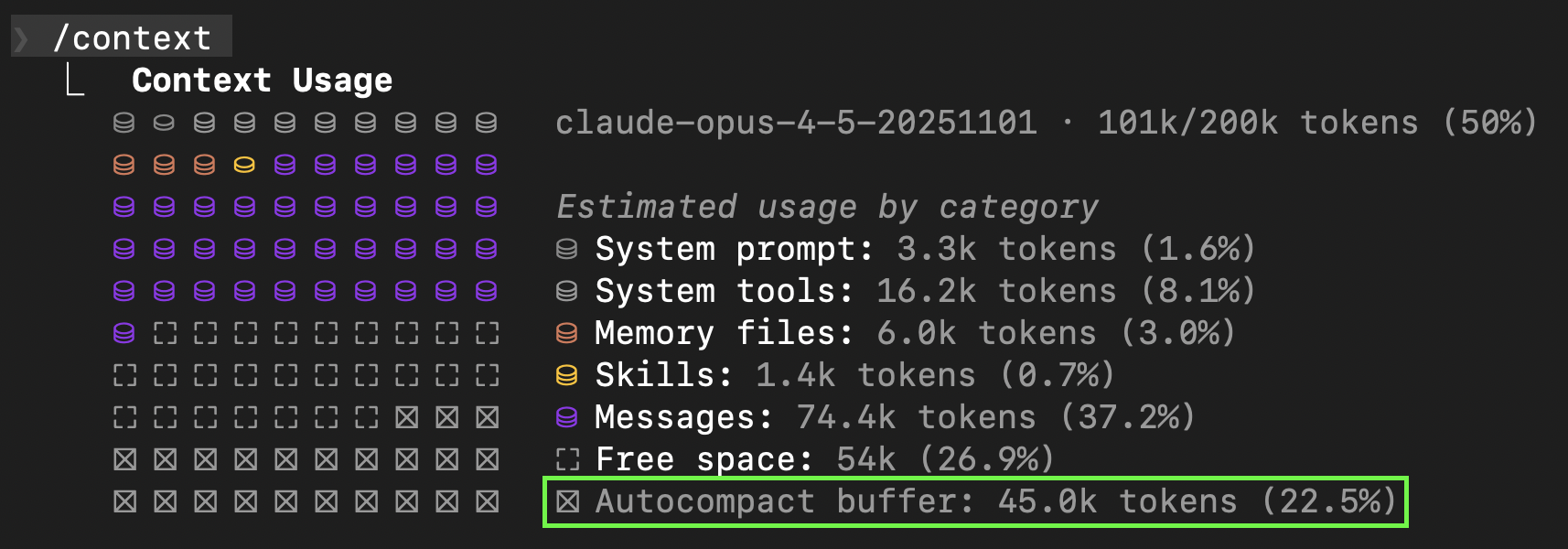
Two operational details matter more than the exact numbers:
- Don’t compact tiny sessions. The system avoids compaction until the conversation is “big enough to be worth it.”
- Re-check periodically. It doesn’t re-compute on every token; it updates on a cadence based on how fast the session is growing (messages and tool calls).
3. Manual Compaction (The “Task Boundary” Move)
Claude Code exposes a manual compaction trigger so you can compact at a task boundary (after a feature lands, after a refactor, before you pivot to something else).
It also supports a “focus hint” so the summary doesn’t bury the lead. Conceptually:
/compact                                    # Use defaults
/compact Focus on the API changes           # Custom focus
/compact Preserve the database schema decisions
For persistent customization, Claude Code can read a project-level instruction section and append it to every compaction prompt. The portable pattern is:
- Keep the instruction short.
- Make it about “what must survive compaction,” not about general style.
## Compact Instructions
When summarizing, focus on TypeScript code changes and
remember the mistakes made and how they were fixed.
The Compaction Prompt
When compaction triggers, the model gets a structured summarization job, not an open-ended “summarize this.”
The contract (paraphrased) looks like “write a working state that allows continuation without re-asking questions,” including:
- user intent (what was asked for, what changed)
- key technical decisions and concepts
- files touched and why they matter
- errors encountered and how they were fixed
- pending tasks and the exact current state
- a next step that matches the most recent user intent
Two small design choices matter:
- It’s a checklist, so the model can’t “forget” an important bucket.
- It asks for structured sections, so the system can store and re-inject it reliably.
Post-Compaction Restoration
After summarizing, Claude Code rebuilds context with:
- Boundary marker — marks the compaction point
- Summary message — the compressed working state
- Recent files — re-read the few most recently accessed files
- Todo list — preserve task state
- Plan state — if you were in a “plan required” workflow
- Hook outputs — if startup hooks injected context
The key insight is the file rehydration: the system re-reads what you were just working on, so you don’t lose your place.
The Continuation Message
After compaction, the summary gets wrapped in this message:
This session is being continued from a previous conversation that ran out
of context. The summary below covers the earlier portion of the conversation.

[SUMMARY]

Please continue the conversation from where we left it off without asking
the user any further questions. Continue with the last task that you were
asked to work on.
Tuning Knobs (Portable)
If you’re implementing compaction in your own agent, you’ll want explicit configuration for:
- Output headroom reservation (so responses don’t get truncated).
- Auto-compaction threshold (a percent or “minimum free space” policy).
- Microcompaction policy (tool result budgets + hot tail size).
- Manual compaction affordance (a command, API method, or UI action).
Aside: Background Task Summarization
Everything above covers your main conversation. This section describes how background agents manage their own context separately.
When you spawn background or remote agents (via the Task tool), they run in isolated context. Rather than producing a full “working state” snapshot every time, Claude Code uses delta summarization to track their progress:
You are given a few messages from a conversation, as well as a summary
of the conversation so far. Your task is to summarize the new messages
based on the summary so far. Aim for 1-2 sentences at most, focusing on
the most important details.
This incremental approach tracks progress without storing full context — each update builds on the previous summary rather than reprocessing everything. Your main conversation remains unaffected.
Summary
Claude Code’s compaction system:
- Microcompaction — preserve a small hot tail, offload bulky outputs to disk
- Auto-compaction — trigger compaction when free space falls below reserved headroom
- Structured summarization — preserve intent, decisions, errors, and “what to do next”
- Rehydration — re-read recent files and restore todo/plan state so work continues cleanly
- File restoration — re-reads your 5 most recent files after summarizing
- Continuation message — tells Claude to resume without re-asking what you want
Background agents use separate delta summarization (1-2 sentence incremental updates).
Best Practices
Compact at task boundaries — Don’t wait for auto-compact. Run /compact when you finish a feature or fix a bug, while context is clean.
Clear between unrelated tasks — /clear resets context entirely. Better than polluting context with unrelated work.
Use subagents for exploration — Heavy exploration happens in separate context, keeping your main conversation clean.
Monitor with /context — See what’s consuming space. Disable unused MCP servers.